I haven’t blogged in a while because I have been buried in work writing a new ticketing system based on Exchange 2007 and Outlook 2007. Most of what we’re doing is fairly unexplored (or at least undocumented) territory. For those who have used Event Sinks in previous versions of Exchange, you maybe be happy (or disappointed depending upon your point of view) to find out that Microsoft is deprecating Event Sinks and replacing them with Transport Agents. In my numerous hours scouring the Internet looking for information on how these are implemented, I found just two worthwhile resources:
Transport Agent Tutorial
http://msexchangeteam.com/archive/2006/12/04/431755.aspx
Transport Agent Sample
http://msdn2.microsoft.com/en-us/library/aa579185.aspx
The first is a blog post from a member of the MS Exchange team, on the other is a sample listed in Technet. Furthermore, nearly all code you’ll find regarding Transport Agents in written in C#. While I have nothing against C# and actually come from a Java background, more of our team is familiar with VB.NET and I feel it’s more human readable. According to Microsoft and the Exchange team, “Agents have full access to all messages they process.” You’ll quickly find out that this isn’t the case. Rather, I should say they don’t “easily” have full access rights to all the messages they process. In fact, strangely most of the properties of the message are read-only which posed some particular issues for our development. Luckily, we found a few workarounds that suited our needs for our environment.
You have two basic types of Transport Agents: Smtp Receive agents and Routing agents. A custom Smtp Receive agent will fire on incoming messages to the Smtp server while they would not fire on outgoing messages on our test environment (a single Exchange 2007 Server running in Hub Transport mode). A custom Routing Agent will fire after a Smtp Receive agent and on outgoing messages. Though I haven’t proven this theory, I would also assume that a Smtp Receive agent would fire on messages transmitted to an Edge Transport Exchange 2007 server. You can find a list of available events your agent can call here: http://technet.microsoft.com/en-us/library/e7389d63-3172-40d5-bf53-0d7cd7e78340.aspx. You’ll also notice from this page that Microsoft provides numerous built-in agents to handle various tasks.
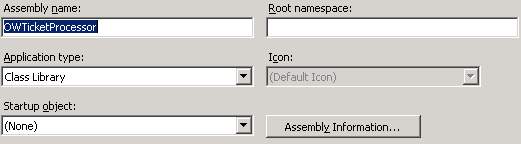
One of the first snags I had in trying to get the sample agent from Technet running, was the Namespace. VB.NET does not behave in the same manner as C# when it comes to namespaces. In order to use the install command specified in the Technet article, I had to clear the root namespace:
Another big snag we ran into was changing the MessageClass to the our custom form. Thankfully, Yuri from Microsoft was able to provide a workaround: http://forums.microsoft.com/TechNet/ShowPost.aspx?PostID=1381211&SiteID=17. I highly recommend using this forum as not only the MVP’s but many of the MS product teams patrol with tons of helpful information.