Squeezing every ounce of performance out of your disk array is critical in IO intensive applications. Most times, this is simply an after-thought. However, doing a little leg-work during the implementation phase can go a long way to increasing the performance of your application. Aligning partitions is a great idea for SQL and virtualized environments – these are the places you will see the most benefit.
The concept of aligning partitions is actually quite simple and applies to SAN’s and really any disk array alike. If you are using RAID in any capacity, then aligning disk partitions will help increase performance. It is best illustrated by the following graphics, borrowed from http://www.vmware.com/pdf/esx3_partition_align.pdf (This is a great read, but specific to VMWare environments, however, the same concepts apply).
Using unaligned partitions in a virtual environment, you can see that a read could ultimately result in 3 disks accesses to the underlying disk subsystem:

By aligning partitions properly, that same read results in just 1 disk access:

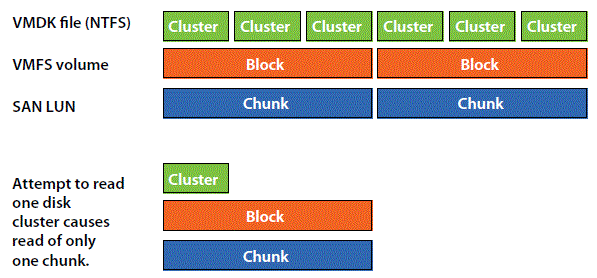
While these graphics are Virtual Machine and VMWare specific, the same is true for Hyper-V and SQL (except remove the middle layer for SQL). In order for partition alignment to work properly, you need to ensure that the lowest level of the disk sub-system has the highest segment size (also referred to as stripe size). Depending upon your RAID controller or SAN, this could default to as low as 4K or as high as 1024K. I won’t cover what differences in segment sizes mean for performance, that’s an entirely difference discussion, but generally speaking defaults are usually 64K or 128K. The basic idea behind a proper stripe size is that you want to size it so that most of your reads/writes can happen in 1 operation.
From there, you need to ensure that your block or file allocation unit size is set properly – ideally smaller or the same size as the segment size and that it is a multiple of the segment size. Lastly, you should then set the offset to the same as the segment size. By default, Windows 2003 will offset by 31.5K, Windows 2008 by 1024K, and VMWare VMFS default’s to 128.
Setting the segment size may or may not be an online operation – that depends entirely on your RAID controller or SAN as to whether this can be done to an already configured array or if it has to be done during the initial configuration. Changing the offset and/or block size of a partition however is NOT an online operation. This means that all data will have to be removed from the partition, the offset configured, and the partition recreated. Prior to Windows 2008, this cannot be done to system partitions so for Windows 2003, you would have to attach the virtual hard disk to another system, set the offset and format the partition, and then perform the windows installation.
The following links provide detailed information about aligning partitions in both VMWare and Windows. Consult your SAN or RAID controller documentation for setting or finding out the segment size.
Recommendations for Aligning VMFS Partitions
Disk Partition Alignment Best Practices for SQL Server