We’re wrapping up a project that involved Windows Storage Spaces on Server 2012 R2. I was very excited to get my hands on new SSDs and test out Tiered Storage Spaces with Hyper-V. As it turns out, the newest technology in SSD drives combined with the default configuration of Storage Spaces is killing performance of VM’s.
First, it’s important to understand sector sizes on physical disks, as this is the crux of the issue. The sector size is the amount of data the physical disk controller inside your hard disk actually writes to the storage medium. Since the invention of the hard disk, sector sizes have been 512 bytes for hard drives. Many other aspects of storage are based on this premise. Up until recently, this did not pose an issue. However, with larger and larger disks, this caused capacity problems. In fact, the 512-byte sector is the reason for the 2.2TB limit with MBR partitions.
Disk manufacturers realized that 512-byte sector drives would not be sustainable at larger capacities, and started introducing 4k sector, aka Advanced Format, disks beginning in 2007. In order to ensure compatibility, they utilized something called 512-byte emulation, aka 512e, where the disk controller would accept reads/writes of 512 bytes, but use a physical sector size of 4k. To do this, internal cache temporarily stores the 4k of data from physical medium and the disk controller manipulates the 512 bytes of data appropriately before writing back to disk or sending the 512 bytes of data to the system. Manufacturers took this additional processing into account when spec’ing performance of drives. There are also 4k native drives which use a physical sector size of 4k and do not support this 512-byte translation in the disk controller – instead they expect the system to send 4k blocks to disk.
The key thing to understand is that since SSD’s were first released, they’ve always had a physical sector size of 4k – even if they advertise 512-bytes. They are by definition either 512e or 4k native drives. Additionally, Windows accommodates 4k native drives by performing these same Read-Modify-Write, aka RMW, functions at the OS level that are normally performed inside the disk controller on 512e disks. This means that if the OS sees you’re using a disk with a 4k sector size, but the system receives a 512b, it will read the full 4k of data from disk into memory, replace the 512 bytes of data in memory, then flush the 4k of data from memory down to disk.
Enter Storage Spaces and Hyper-V. Storage Spaces understands that physical disks may have 512-byte or 4k sector sizes and because it’s virtualizing storage, it too has a sector size associated with the virtual disk. Using powershell, we can see these sector sizes:
Get-PhysicalDisk | sort-object SlotNumber | select SlotNumber, FriendlyName, Manufacturer, Model, PhysicalSectorSize, LogicalSectorSize | ft
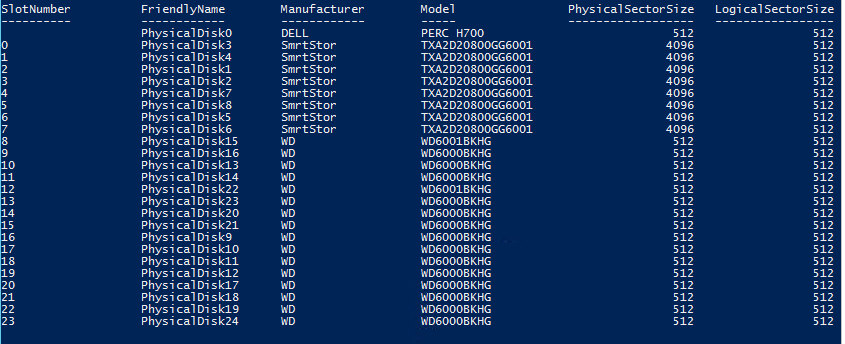
Any disk whose PhysicalSectorSize is 4k, but LogicalSectorSize is 512b is a 512e disk, a disk with a PhysicalSectorSize and LogicalSectorSize of 4k is a 4k native disk, and any disk with 512b for both PhysicalSectorSize and LogicalSectorSize is a standard HDD.
The problem with all of this is that the when creating a virtual disk with Storage Spaces, if you do not specify a LogicalSectorSize via the Powershell cmdlet, the system will create a virtual disk with a LogicalSectorSize equal to the greatest PhysicalSectorSize of any disk in the pool. This means if you have SSD’s in your pool and you created the virtual disk using the GUI, your virtual disk will have a 4k LogicalSectorSize. If a 512byte write is sent to a virtual disk with a 4k LogicalSectorSize, it will perform the RMW at the OS level – and if you’re physical disks are actually 512e, then they too will have to perform RMW at the disk controller for each 512-bytes of the 4k write it received from the OS. That’s a bit of a performance hit, and can cause you to see about 1/4th of the advertised write speeds and 8x the IO latency.
Why this matters with Hyper-V? Unless you’ve specifically formatted your VHDx files using 4k sectors, they are likely using 512-byte sectors, meaning every write to a VHDx storage on a Storage Spaces virtual disk is performing this RMW operation in memory at the OS and then again at the disk controller. The proof is in the IOMeter tests:
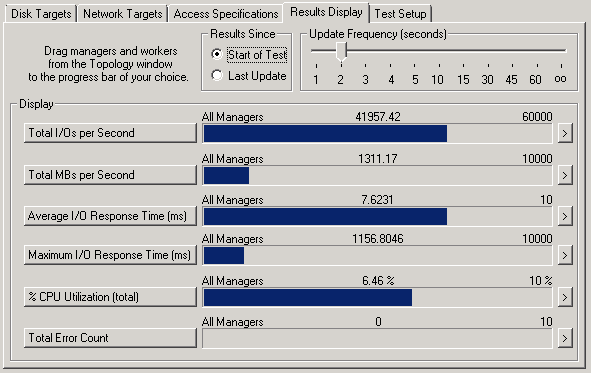
32K Request, 65% Read, 65% Random
Virtual Disk 4k LogicalSectorSize
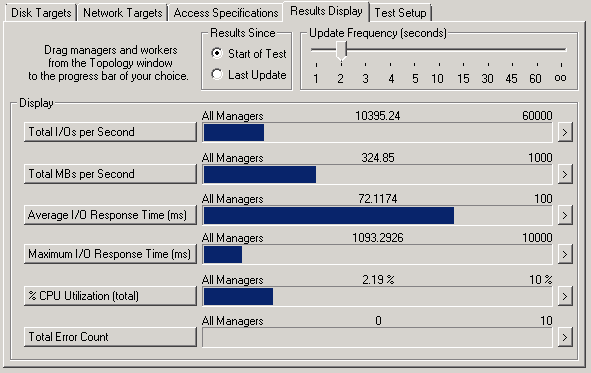
Virtual Disk 512b LogicalSectorSize