Speedometer adjustment for LV Tong based LSV’s with Neos controllers

The speedometer on my Advanced EV1 6L has always been off by 1-2mph. I recently replaced my instrument cluster and found it was off nearly 6mph. In researching this issue, it appears the EV1 with Neos controllers use an external Hall effect speed sensor attached directly to the motor, sending the signal directly to the instrument cluster. The cluster has firmware flashed specifically to the gear ratio and tire size that calculates the cart speed. None of the settings in the Neos controller affect this calculation and there is currently not a documented way to re-flash the firmware on the Hefei Huanxin Technology Development Company controller.

Hall effect speed sensors typically output a square wave at 5V or 12V DC. Reviewing the wiring diagram for the A627 I was able to see the green/yellow wire mapped to pin 1 of the instrument cluster carries the signal from the speed sensor attached to the AC motor.
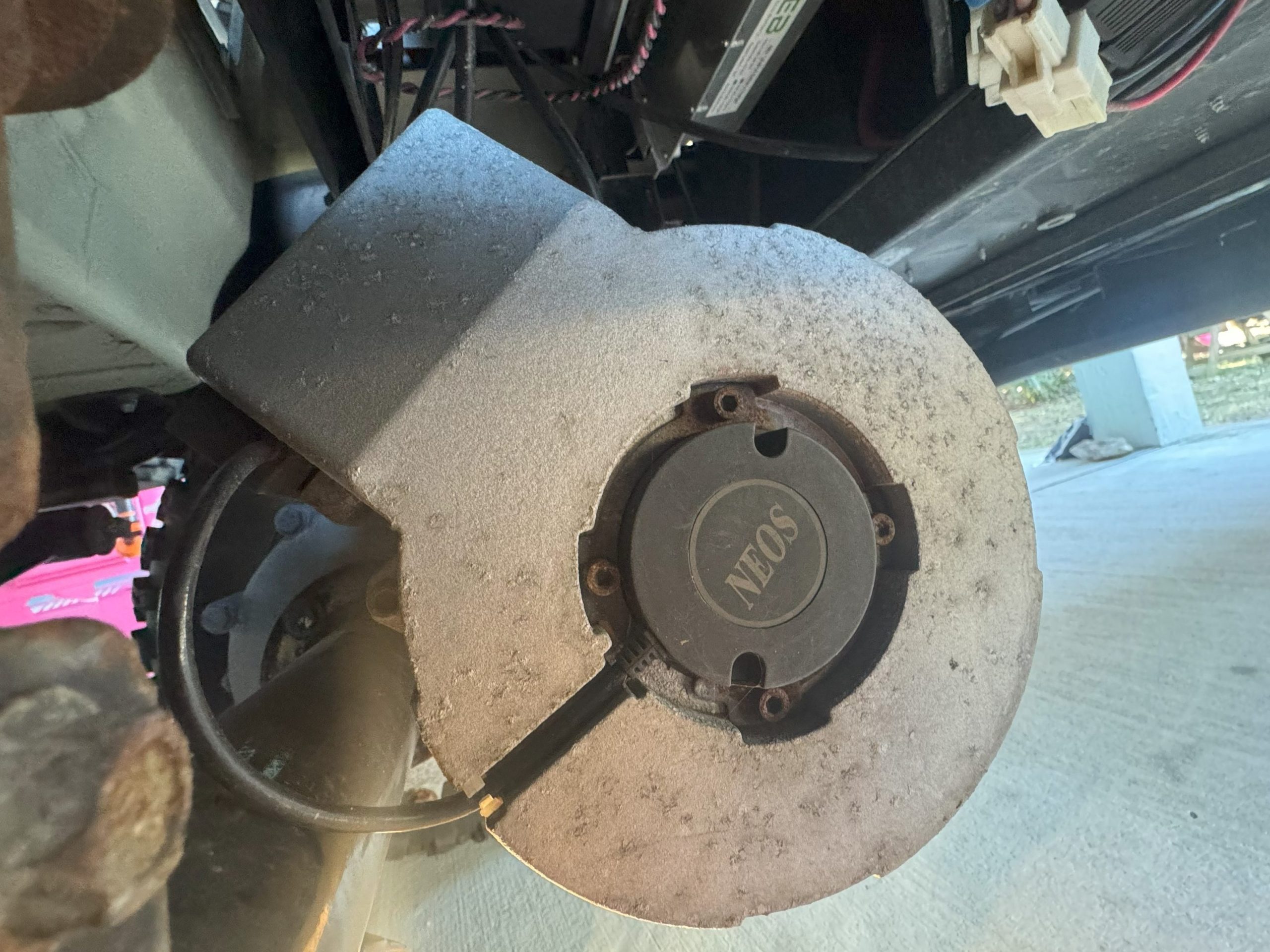
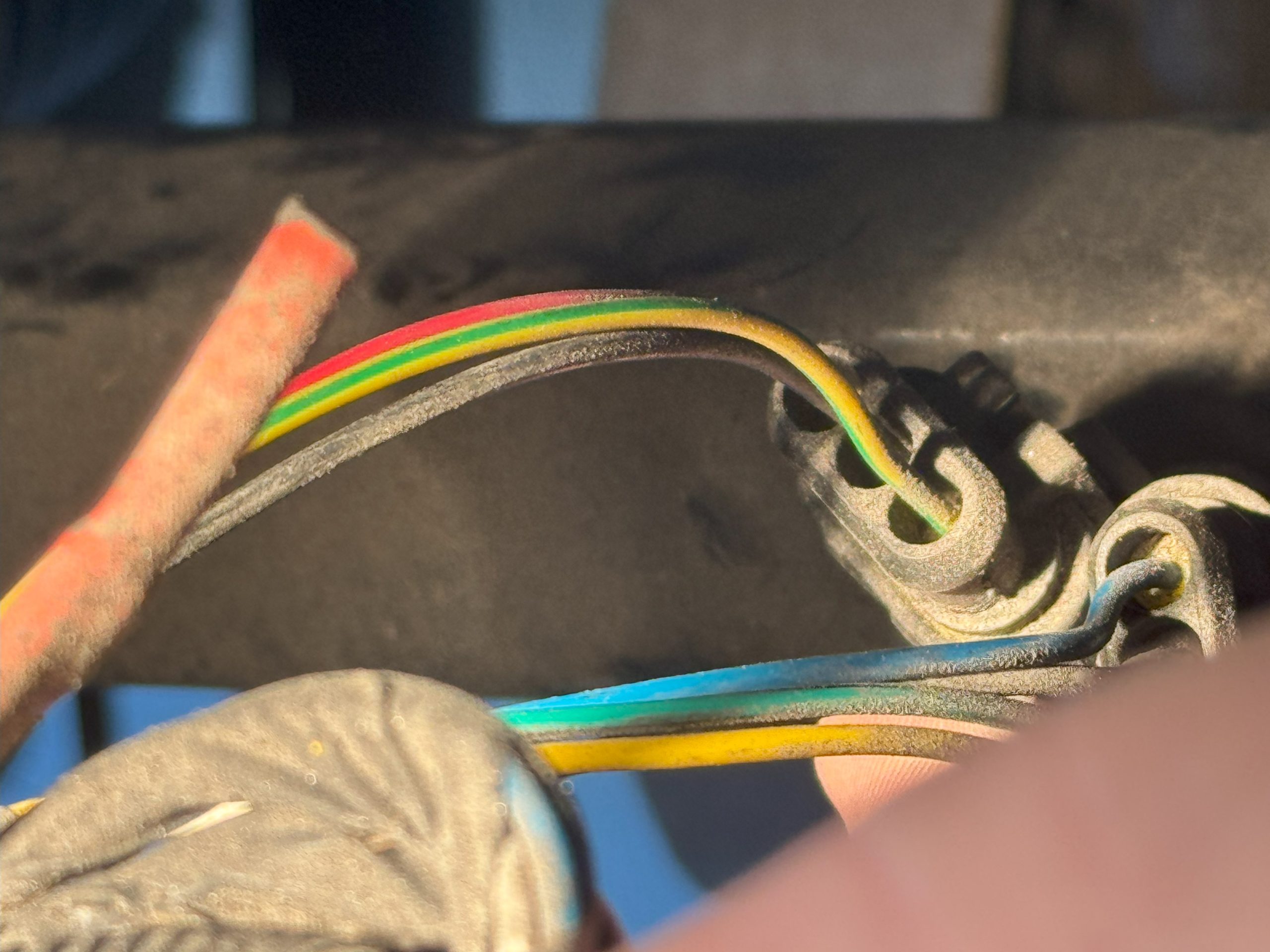
After removing the controller cover located under the rear seat, you’ll find two wiring harnesses that connect to the motor – one for the encoder and one for the speed sensor.

The speed sensor delivers 4 pulses per revolution according to the label on the cluster. I decided to connect an oscilloscope (used the EspoTek Labrador attached to my Surface Go for this) and confirmed it output a 12V square wave. In order to change the output of the sensor, I investigated using a frequency divider to adjust the signal. There are several reference specifications for building this type of circuit, but I found a purpose-built device from Widget Man that suits the need at a reasonable cost – the Univeral Speedometer Corrector.
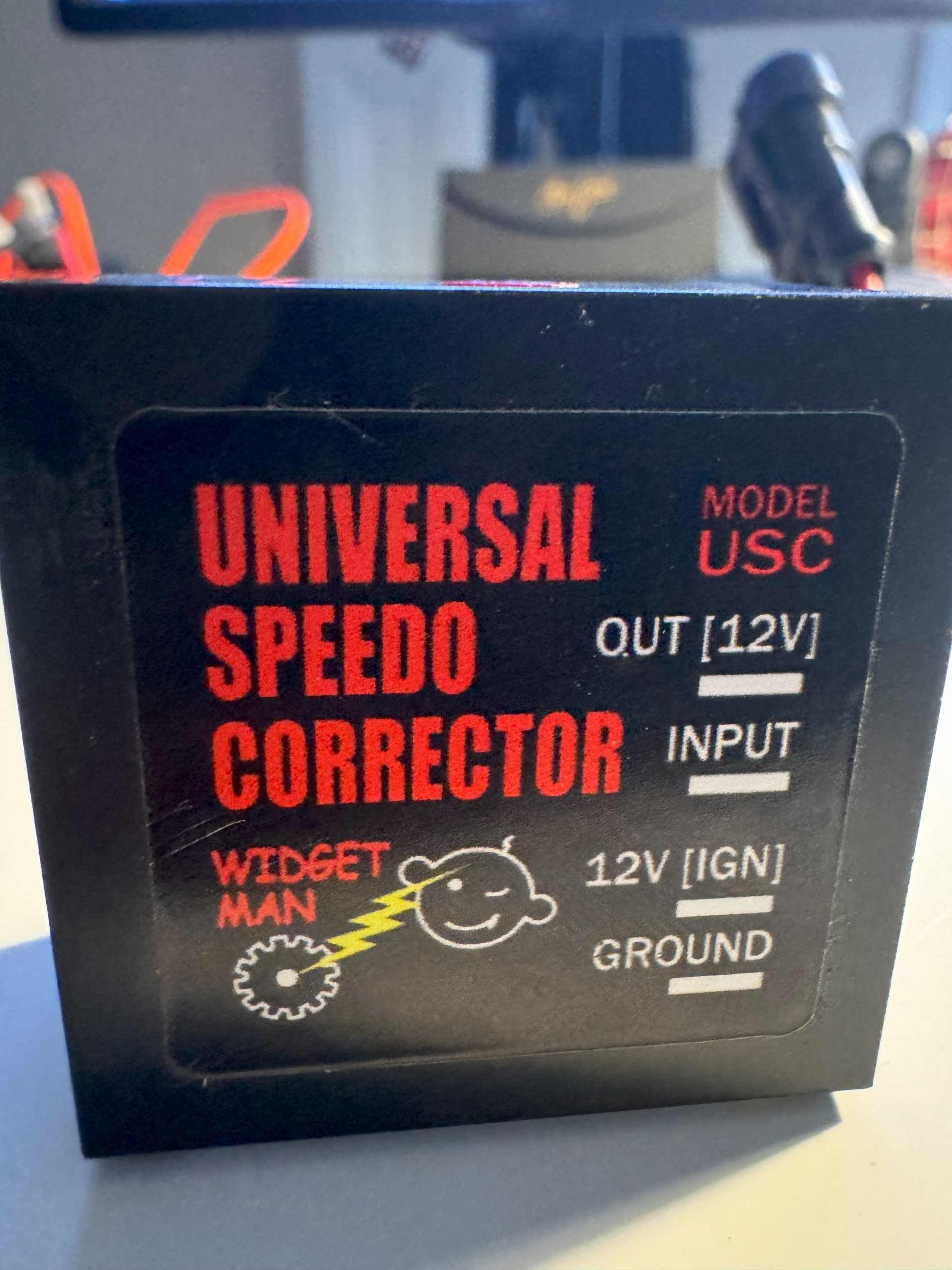
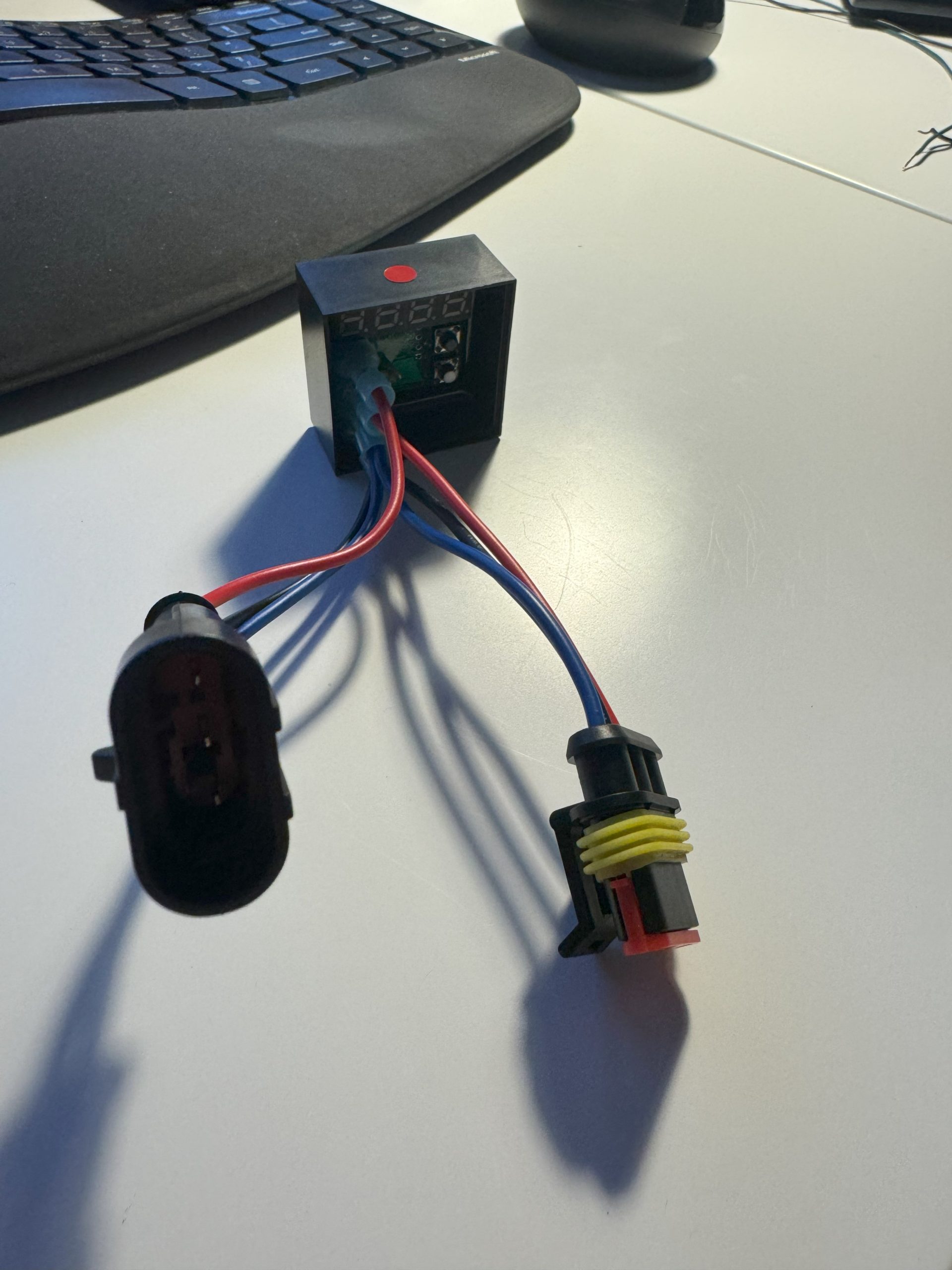
To simplify installation in the cart, I used the 3-pin automotive DJ7031 connectors and 0.25″ FASTONS – you can find both of these at your local automotive store or on Amazon. This enables the device to use the existing 12V DC feed for the sensor for power and ensure a water-tight connection.

The Speedo Corrector has a digital output and two buttons that enable you to adjust input signal from 1.5% to 6000%. There are also pull-up resistors to deal with various types of installations – we leave both resistors in-tact for our use case. Since my cart was displaying 34mph and GPS had it at 28mph, I set it to 0.830 (28/34 = 0.8235).
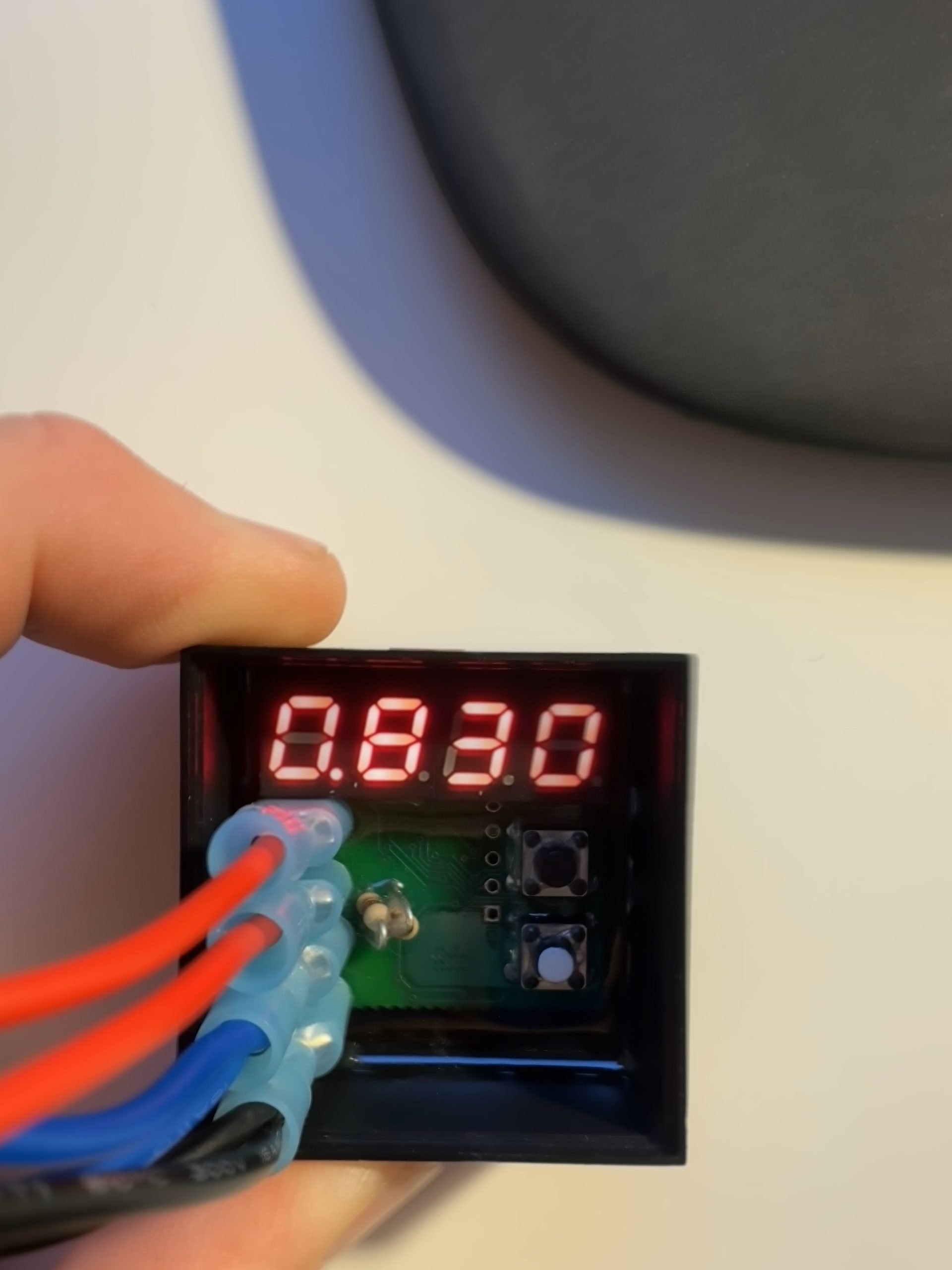
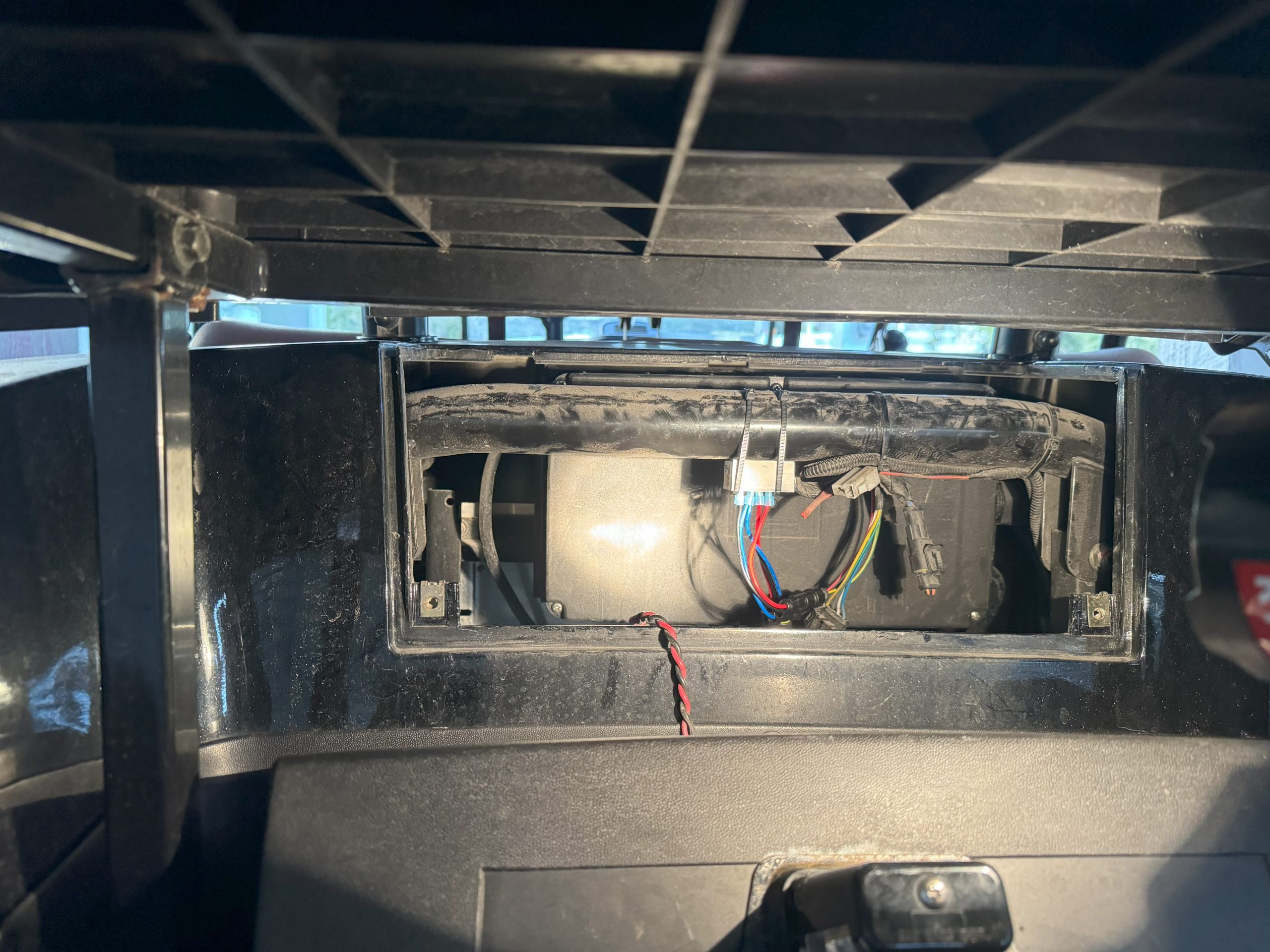
Last step was using a few zip times to hold it in place and connect it to the existing wiring harness for the speed sensor.
Use CSP’s AOBO to manage Azure subscriptions from other channels

Microsoft’s Cloud Solution Provider program is a great option for service providers that provide managed services on Azure. It enables the partner to provide a single bill encompassing both cloud services costs and managed services costs to the customer. There are scenarios where the customer may have purchased Azure through another licensing channel and wants the service provider to take over management of the environment. For CSP partners, they can leverage the existing identity model that CSP provides to manage Azure subscriptions provisioned through other licensing channels. This is enabled by establishing a reseller relationship with the existing tenant and then assigning permissions to the appropriate group in the partner’s AAD tenant.

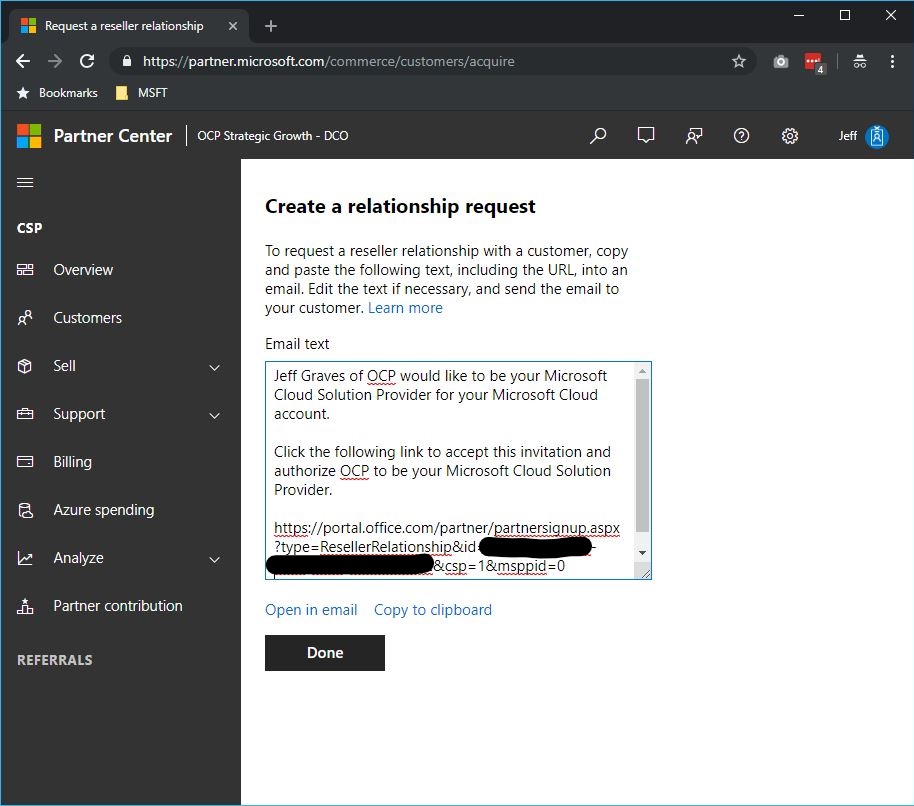
  1. Log in to Partner Center using your admin CSP credentials and generate a link to establish a reseller relationship from Dashboard > CSP > Customers > Request reseller relationship.
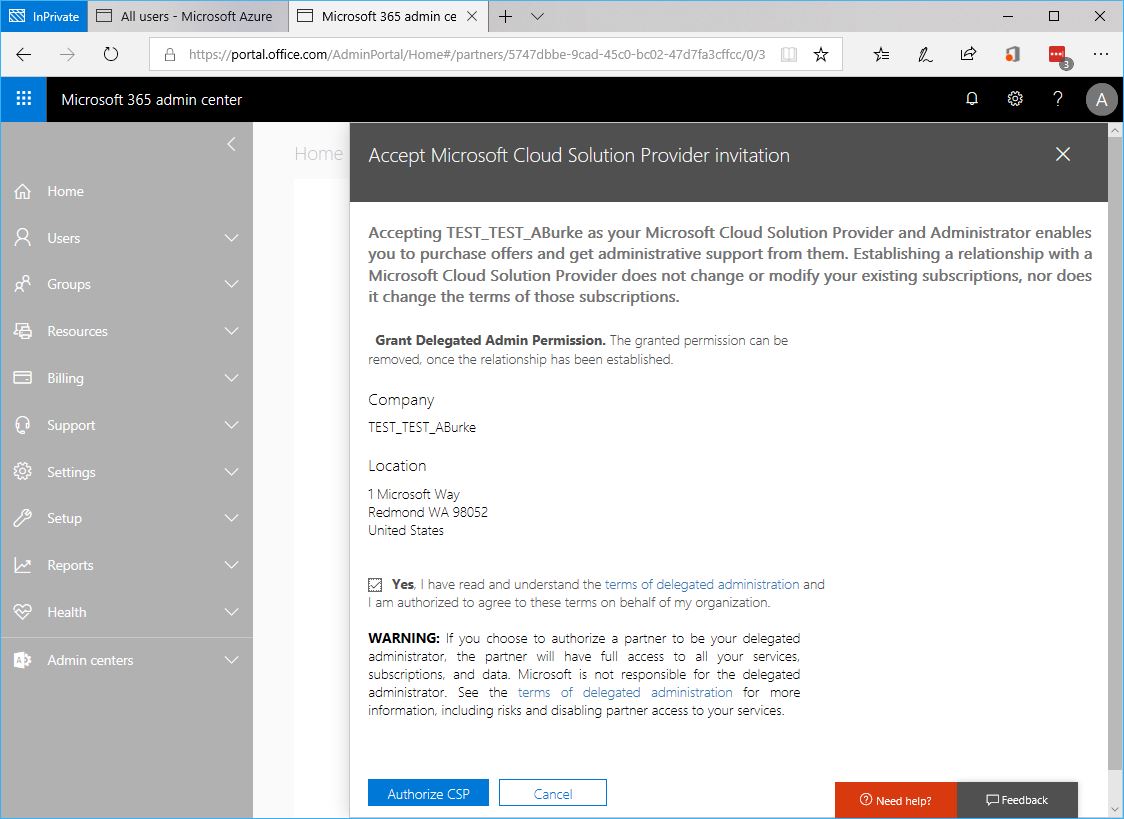
  2. Send the link to the customer to have them accept the invitation and authorize the CSP relationship.
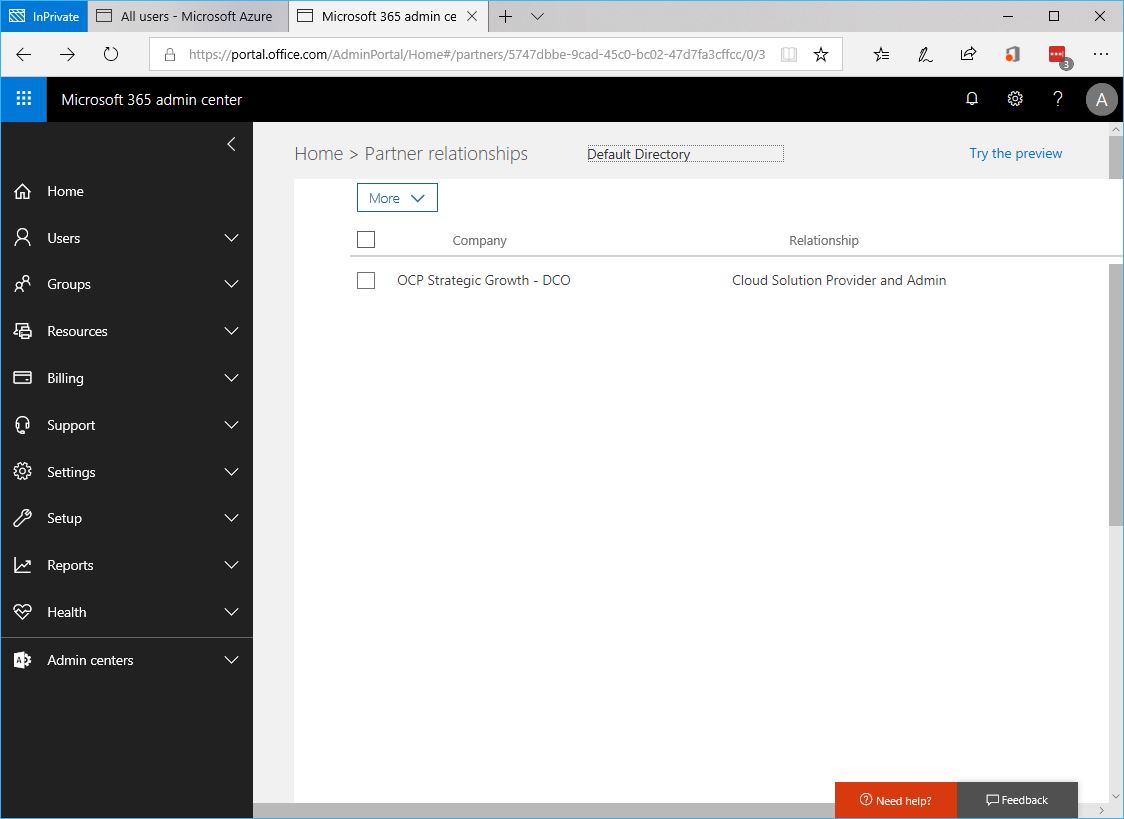
  3. Once authorized, the customer can see the Partner in Admin Center under Partner Relationships
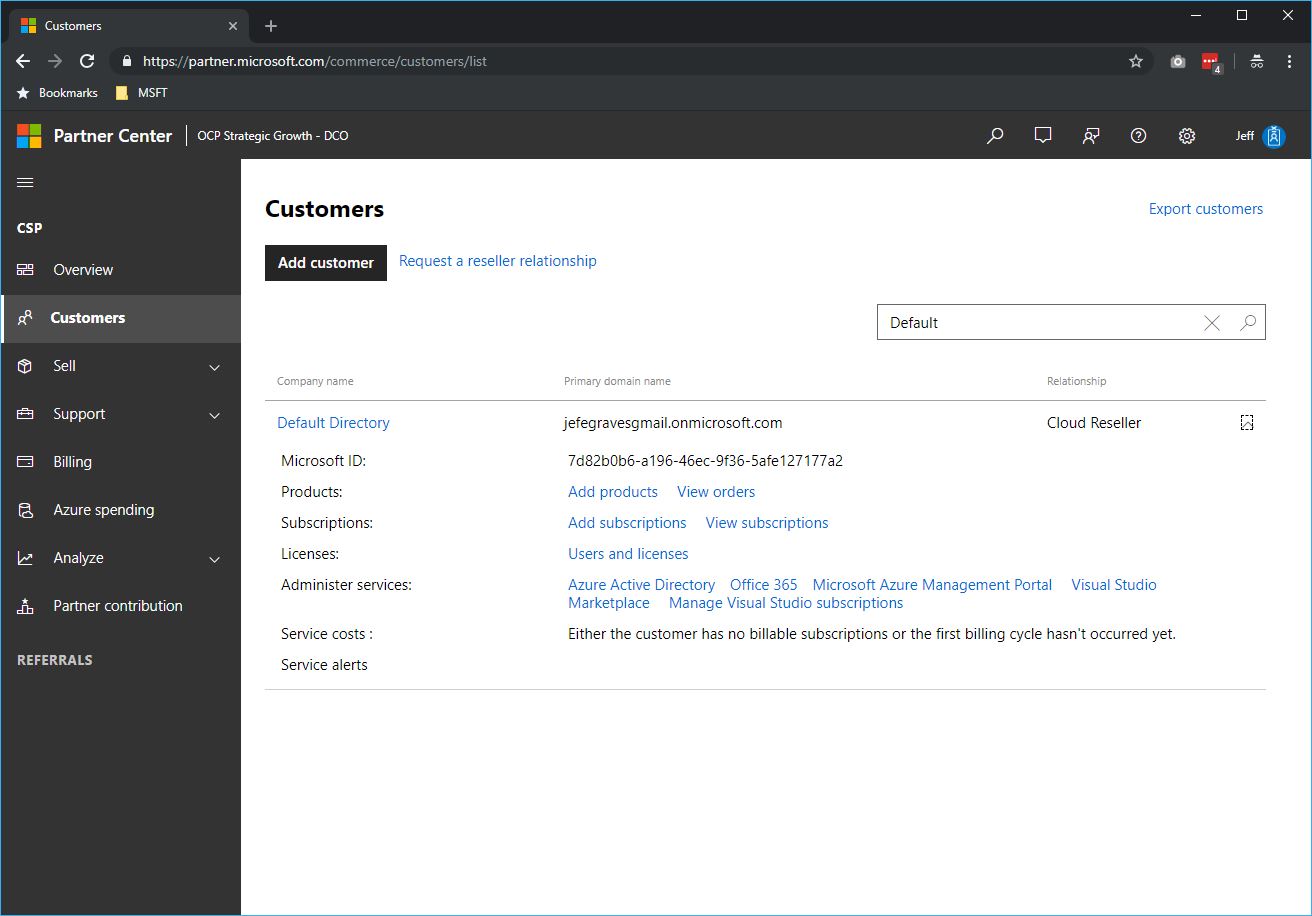
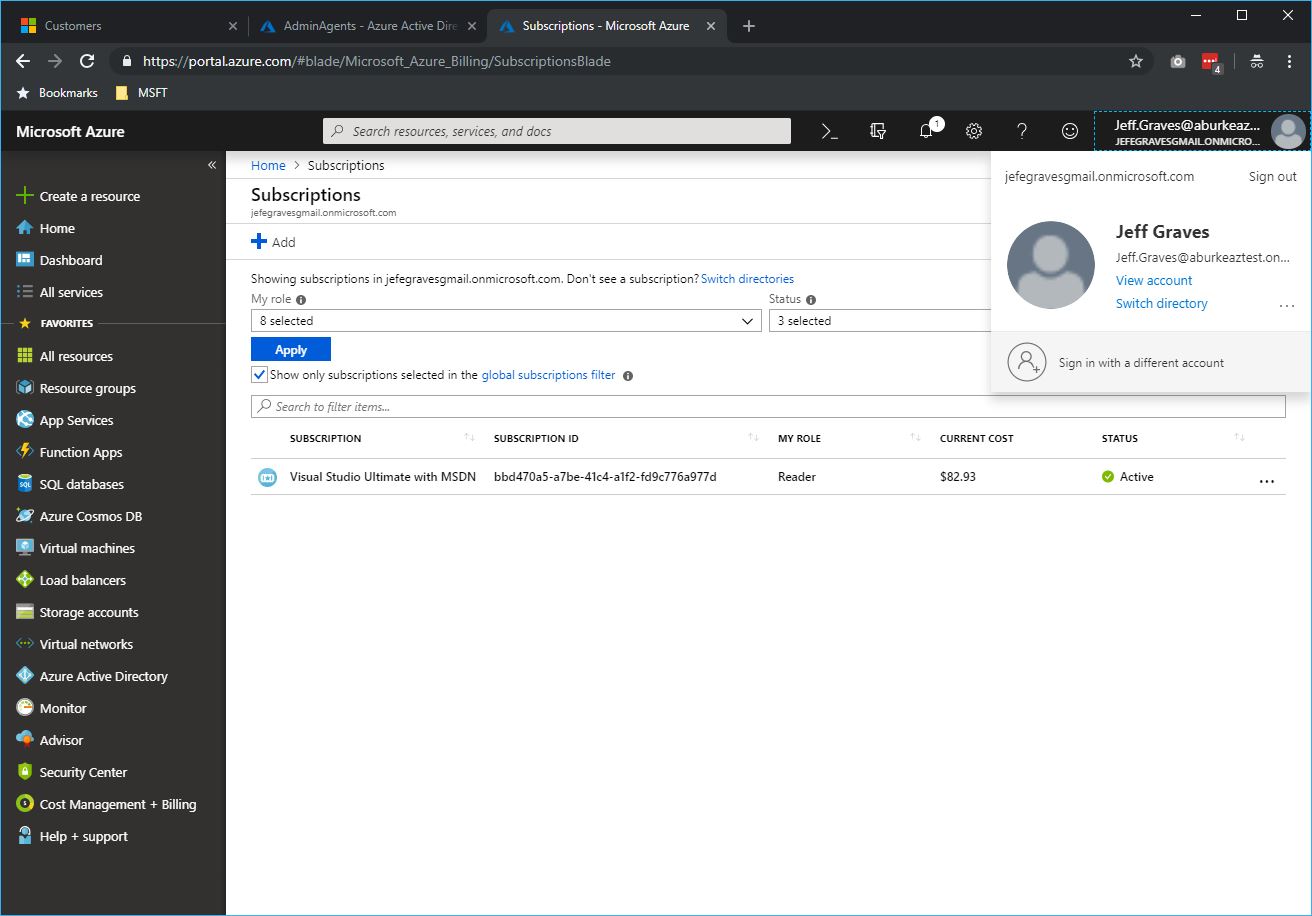
  4. As a partner, you will now find the customer in your Customer List in Partner Center under Dashboard > CSP > Customers.
  5. Open the Azure Active Directory Admin Center, browse Groups and select the group you want to have access to the customer’s subscription (note: You must select either AdminAgents or HelpdeskAgents groups). Copy the Object ID of the group.
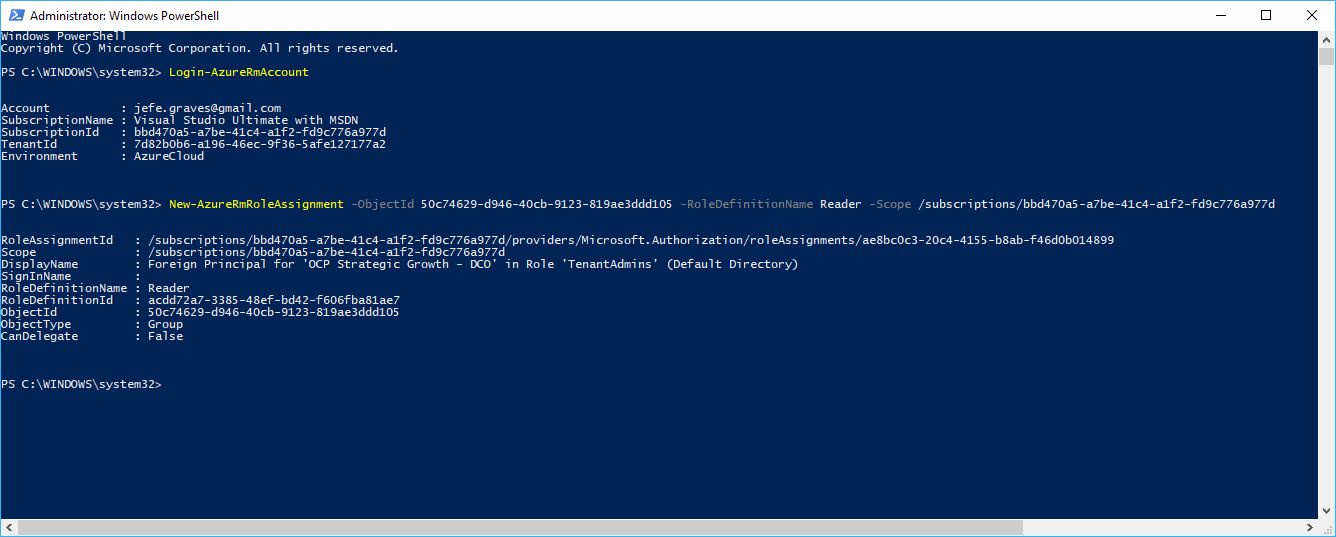
  6. Using PowerShell, an existing admin in the customer’s subscription will need to grant the partner’s group permissions to the subscription using the New-AzureRmRoleAssignment cmdlet. Permissions can use any Role Definition (ie. Reader, Contributor, Owner) in the customer’s subscription and can be scoped appropriately (ie. Subscription, Resource Group, Resource).
    New-AzureRmRoleAssignment -ObjectId 50c74629-d946-40cb-9123-819ae3ddd105 -RoleDefinitionName Reader -Scope /subscriptions/bbd470a5-a7be-41c4-a1f2-fd9c776a977d

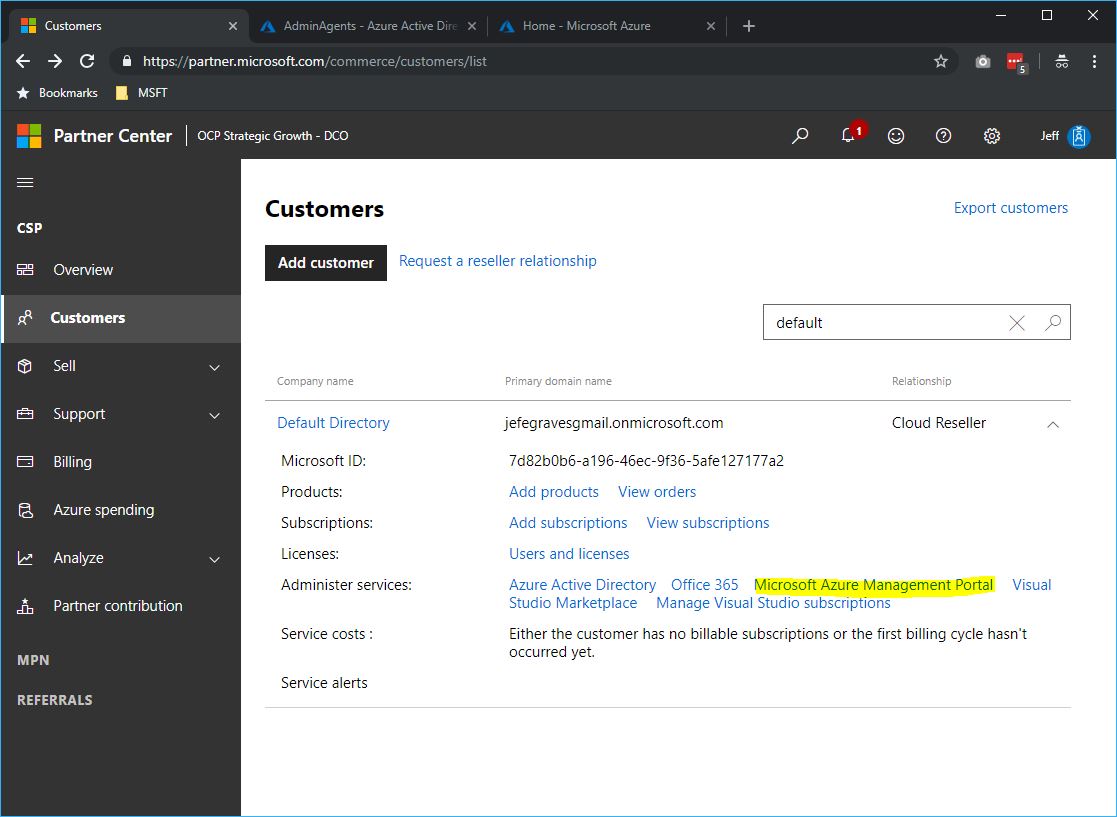
  7. The partner can now use the link to the Azure portal from Partner Center to manage the customer’s subscription.

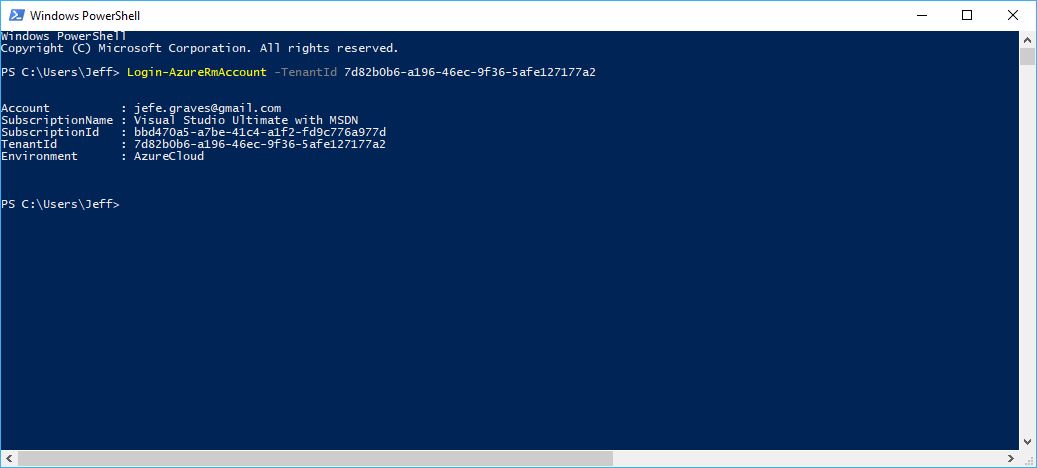
  8. The partner can also manage the subscription using PowerShell by using the TenantId parameter.
    Login-AzureRmAccount -TenantId 7d82b0b6-a196-46ec-9f36-5afe127177a2